Navigation workspace
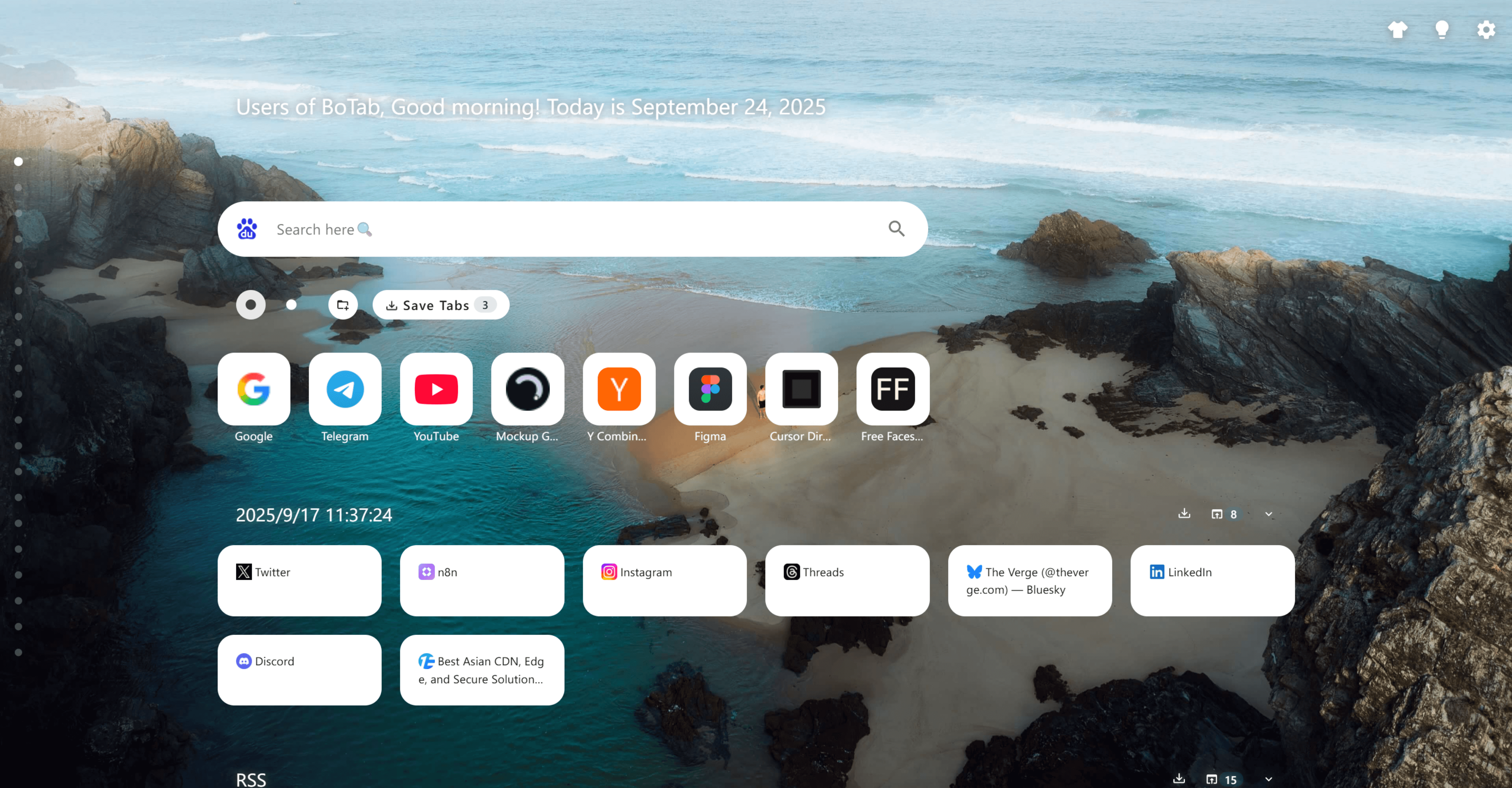
Multi-column navigation built from your bookmarks, with Quick Directory jumps and card actions.
Key capabilities
Navigation workspace
BoTab turns bookmark folders into a scannable multi-column board—sections, cards, and a Quick Directory so you can jump by category and manage items in place. Because it’s still native bookmarks under the hood, your setup stays portable, familiar, and sync-friendly.
Bookmark-to-board generation
Generate a structured start page from bookmark folders so your saved links become scannable cards.
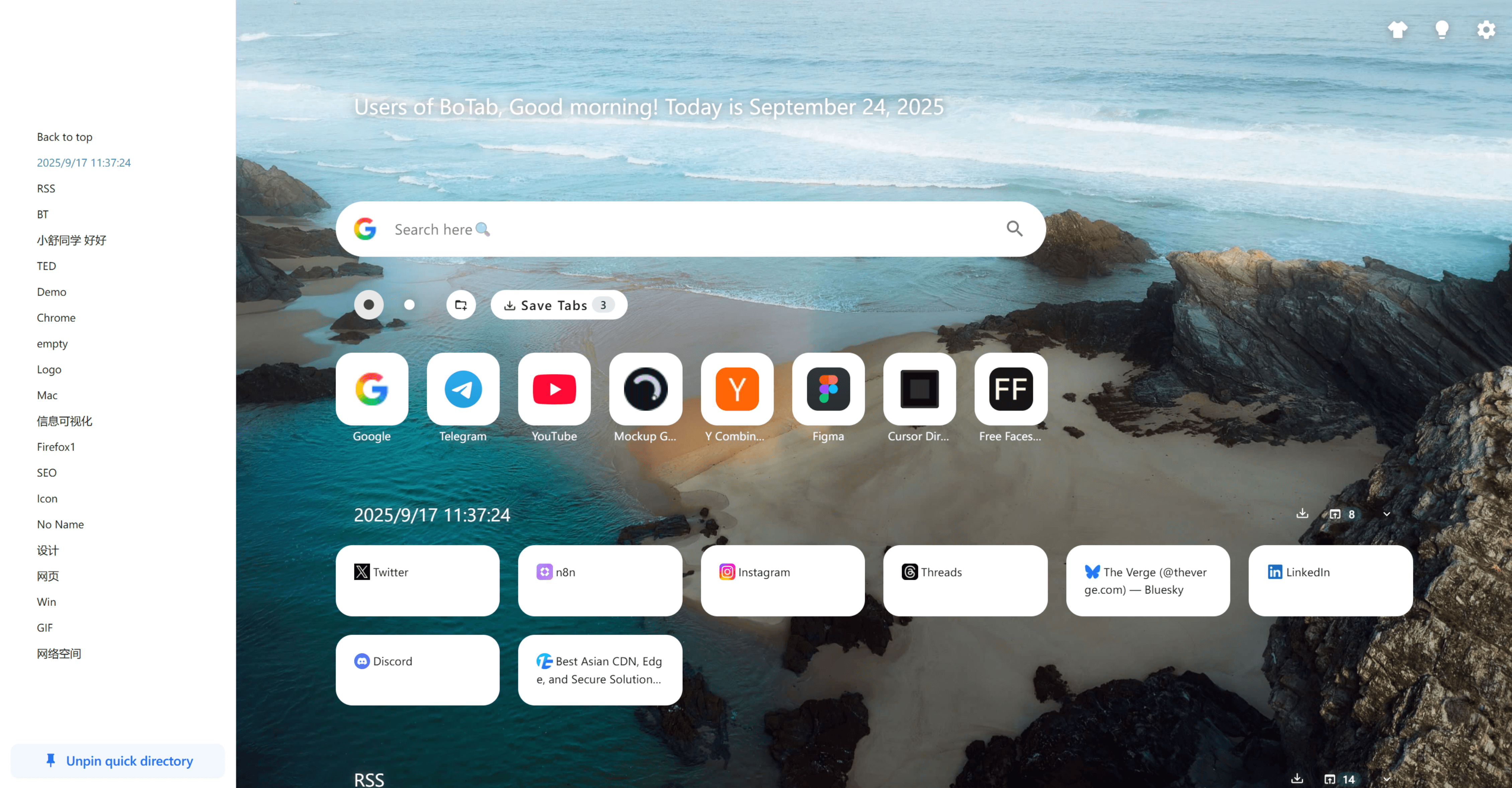
Quick Directory navigation
Pin common categories on the left and jump to any section without endless scrolling.
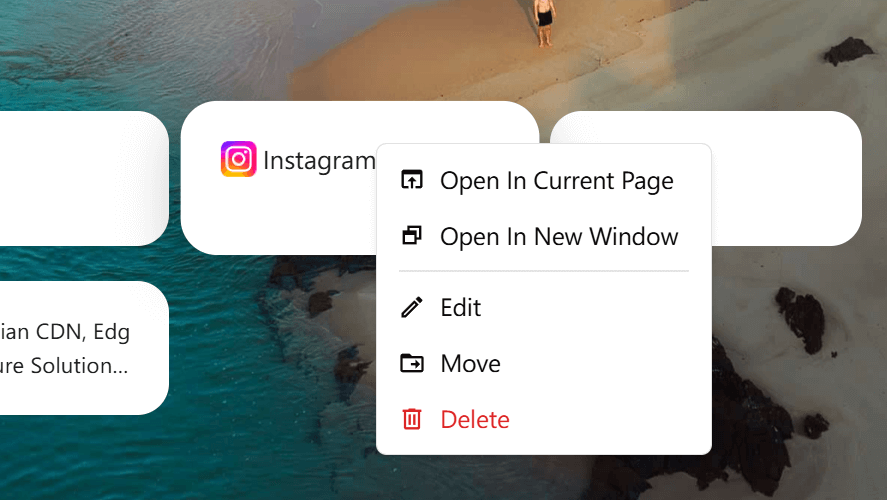
Card actions menu
Open in current tab/window, edit title/icon, move to another folder, or delete—right from the page.
Search-first entry point
Keep search and navigation in one place so the new tab page is both a launcher and an index.
Bulk organization
Use sorting, filtering, and multi-select behaviors to clean up collections without friction.
Sharing-ready boards
Turn a folder into a presentable board you can share as a curated resource list.
How it works
1. Organize bookmarks into folders
Group links by project or category (e.g., RSS, design, tools) using your browser bookmarks.
2. Open a new tab
BoTab generates a multi-column board from your bookmark structure and keeps it easy to scan.
3. Jump and search
Use Quick Directory anchors and search to land on the right section immediately.
4. Manage items in place
Right-click a card to edit, move, delete, or choose how to open it.
5. Keep boards fresh
When you have a useful set of tabs open, save them into a folder to update the board in one go.
Use cases
Research hubs
Keep articles, papers, and tools grouped per topic with quick jumps between sections.
Work vs. personal contexts
Separate categories like “Design”, “Dev”, “Finance” and switch instantly from the new tab page.
Team onboarding lists
Share a folder-backed board as a starter pack of links for new teammates.
Daily start page
Put your top sites, folders, and shortcuts on a single page that feels like a dashboard.
 Download Now Chrome